You do not need to be a developer to build a personal AI assistant in 2026. With the right combination of tools, you can create a system that handles your email, calendar, research, and daily tasks automatically.
Here is how to build one from scratch, step by step.
What a Personal AI Assistant Actually Does
A good personal AI assistant should:
- Summarize your daily emails and flag urgent ones
- Draft replies based on your writing style
- Manage your calendar and suggest schedule optimizations
- Research topics and deliver brief summaries
- Track your tasks and send reminders
- Create content drafts on demand
You are essentially building a workflow, not a single tool.
Step 1: Choose Your Core AI Brain
Your assistant needs a central reasoning engine.
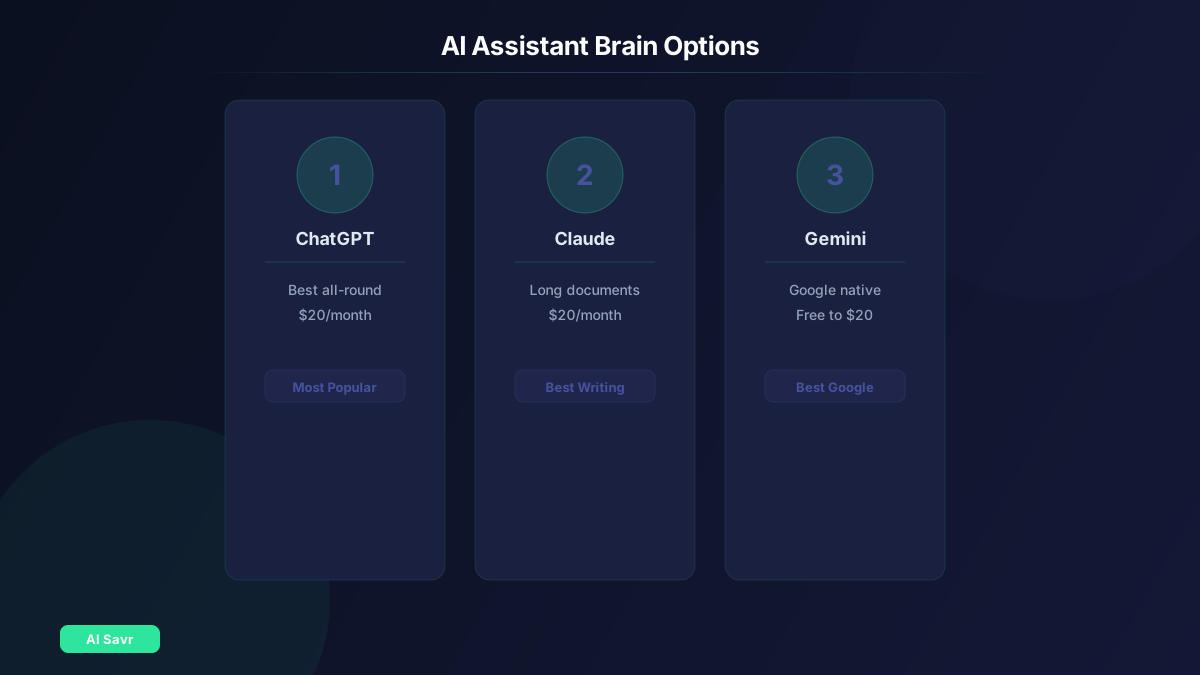
| Tool | Best For | Cost |
|---|---|---|
| ChatGPT | General tasks, coding, analysis | $20/month Plus |
| Claude | Long documents, writing, nuance | $20/month Pro |
| Gemini | Google Workspace integration | Free to $20/month |
For most people, ChatGPT with custom GPTs is the easiest starting point. If you work heavily in Google Workspace, Gemini integrates natively.

Step 2: Set Up Your Automation Layer
Zapier connects your AI brain to your other tools. Here are the core automations:
Email Manager:
- Trigger: new email arrives
- Action: AI classifies priority, drafts response
- Output: draft saved to your inbox or sent automatically for low-priority items
Calendar Optimizer:
- Trigger: daily at 7 AM
- Action: AI reviews today's meetings, preps briefings
- Output: summary delivered to Slack or email
Research Assistant:
- Trigger: you send a message to a specific channel
- Action: AI researches the topic using Perplexity
- Output: structured summary with sources
Step 3: Add Memory and Context
The biggest upgrade for any AI assistant is memory. Use Notion AI as your assistant's brain:
- Store preferences, writing style examples, and common responses
- Keep a running log of decisions and context
- Create templates for recurring tasks

Step 4: Build Daily Routines
Morning Briefing (automated):
- Weather and commute update
- Top 5 email summaries with suggested actions
- Today's calendar with prep notes
- Task list priorities
End of Day Review (automated):
- Summary of completed tasks
- Follow-up reminders
- Tomorrow's agenda preview
Step 5: Add Voice and Mobile Access
For hands-free control:
- Use ChatGPT voice mode on mobile
- Set up shortcuts on your phone to trigger workflows
- Use Otter.ai for meeting transcription and action items
Cost Breakdown
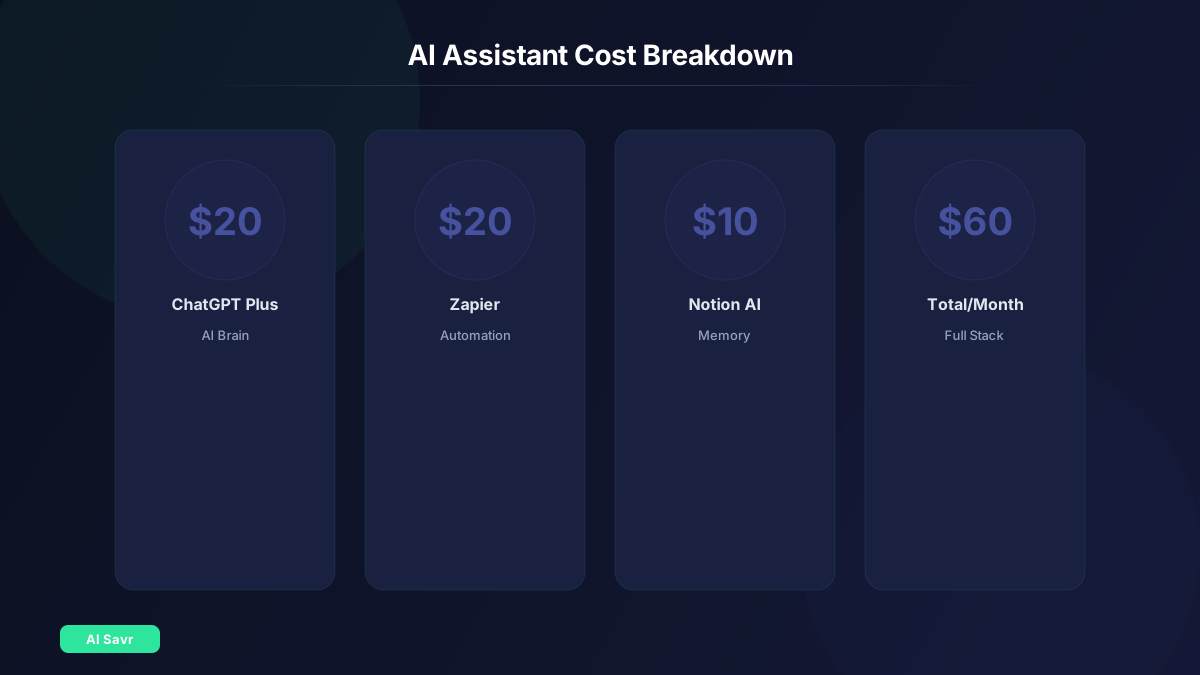
| Component | Tool | Monthly Cost |
|---|---|---|
| AI Brain | ChatGPT Plus | $20 |
| Automation | Zapier Starter | $20 |
| Memory | Notion AI | $10 |
| Transcription | Otter.ai | $10 |
| Total | $60/month |
For under $60 per month, you get an assistant that handles tasks costing far more if done manually.
Common Mistakes to Avoid
- Trying to automate everything at once. Start with 2 to 3 workflows.
- Not adding clear constraints. Tell your AI what NOT to do.
- Skipping the testing phase. Run automations in draft mode first.
- Ignoring privacy. Never pipe sensitive data through unsecured tools.
Related Resources
- AI Automation Workflows Guide
- Best AI Agents for Business
- AI Productivity System for Solo Founders
- Automation Tools
The Bottom Line
Building a personal AI assistant is no longer a weekend hack project. The tools are mature enough to create something genuinely useful in an afternoon. Start with one pain point, automate it well, and expand from there. The best assistant is the one you actually use every day.