You're wasting hours every week on tasks that AI can do in seconds. Answering the same types of emails. Posting to social media. Updating spreadsheets. Writing weekly reports. These repetitive tasks are the perfect targets for AI automation.
The good news: you don't need to be a developer to set this up. Tools like Zapier, Make, and n8n now have built-in AI actions that let you create powerful workflows with drag-and-drop interfaces. Connect a trigger, add an AI step, define the output, and you're done.
This guide walks you through everything: the best platforms, real workflow examples, step-by-step setup instructions, and how to calculate the ROI of automation.
What Is an AI Automation Workflow?
An AI automation workflow combines two things: traditional automation (when X happens, do Y) with AI intelligence (understand, summarize, generate, or decide). The AI adds a layer of reasoning that basic automation never had.
Traditional automation: When a new email arrives, forward it to a folder. AI automation: When a new email arrives, have ChatGPT read it, determine if it's a lead or support request, draft an appropriate response, and route it to the right team.
That's the difference. AI doesn't just move data around. It understands the data and acts on it intelligently.
The Best AI Automation Platforms
1. Zapier AI
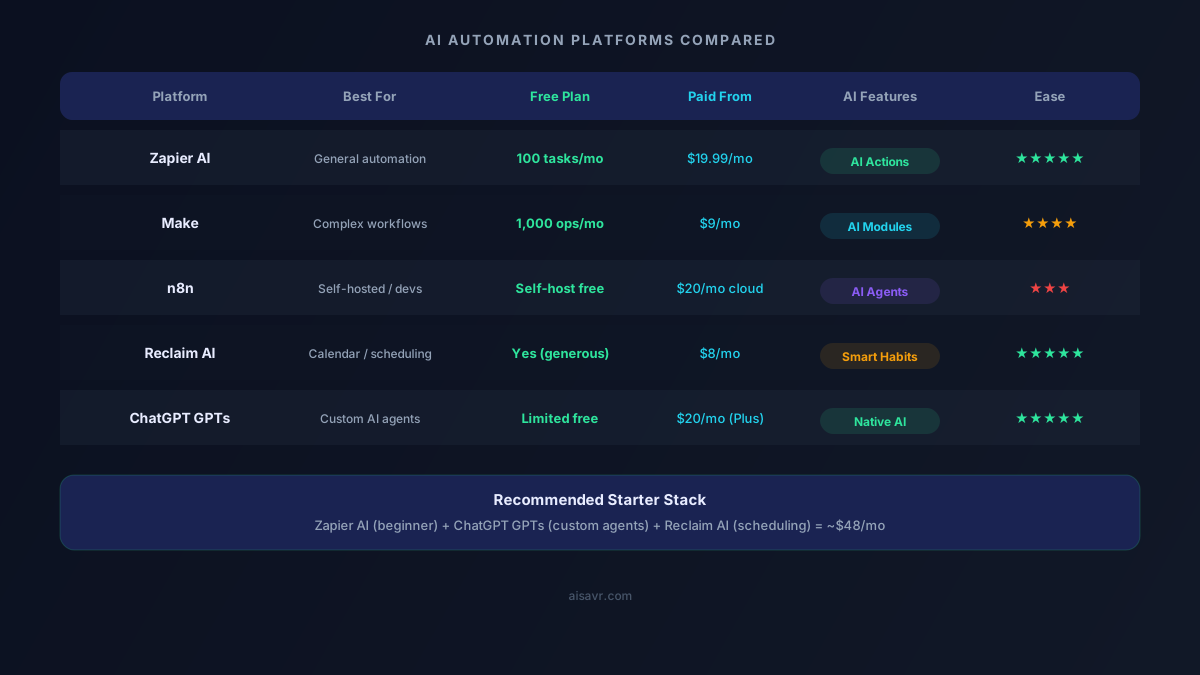
Zapier is the easiest way to start automating. It connects 7,000+ apps and now has built-in AI actions powered by ChatGPT. You can add AI steps to any workflow: summarize text, classify data, generate content, extract information, or translate languages.
Pricing: Free plan with 100 tasks/month, paid plans from $19.99/month. Best for: Beginners and non-technical users who want quick results.
The new "AI Actions" feature is a game-changer. You can tell Zapier what you want to automate in plain English, and it builds the workflow for you. It's not perfect, but it gets you 80% of the way there.
2. Make (formerly Integromat)
Make is more powerful than Zapier for complex workflows. Its visual builder shows you exactly how data flows between steps, and it supports branching, loops, and error handling. The AI integration works through OpenAI, Anthropic, and other providers.
Pricing: Free plan with 1,000 operations/month, paid plans from $9/month. Best for: Users who need complex, multi-step workflows with conditional logic.
Make's $9/month plan is significantly cheaper than Zapier's equivalent, making it the budget choice for power users.
3. n8n
n8n is the open-source automation platform. You can self-host it for free or use the cloud version starting at $20/month. It has the most powerful AI capabilities of any automation tool, including built-in AI agent nodes that can plan and execute multi-step tasks autonomously.
Pricing: Self-hosted is free. Cloud starts at $20/month. Best for: Developers, technical teams, and anyone who wants full control over their automation infrastructure.
4. ChatGPT Custom GPTs
OpenAI's custom GPTs let you create specialized AI assistants that can take actions through API connections. While not a traditional automation platform, they're incredibly useful for creating AI agents that handle specific tasks.
Pricing: Requires ChatGPT Plus ($20/month) to create, free to use for anyone. Best for: Custom AI assistants that combine conversation with action.
5. Reclaim AI
Reclaim AI specializes in calendar and scheduling automation. It intelligently schedules meetings, blocks focus time, creates habit routines, and optimizes your calendar based on priorities. Not a general-purpose tool, but invaluable for time management.
Pricing: Free plan (generous), paid from $8/month. Best for: Calendar optimization, scheduling, and time management.
Real Workflow Examples
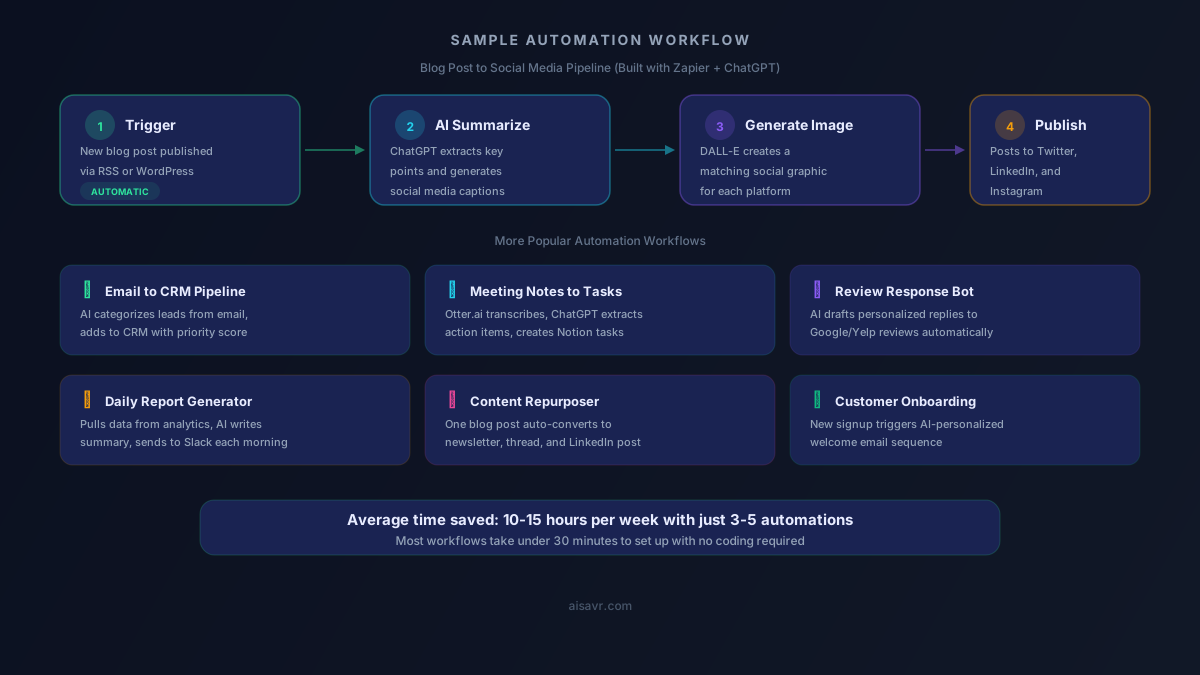
Here are practical workflows you can build today:
1. Blog Post to Social Media Pipeline
Trigger: New blog post published (RSS feed) AI Step: ChatGPT summarizes the post and generates a Twitter thread, LinkedIn post, and Instagram caption Action: Posts to all three platforms with appropriate formatting and hashtags
Time saved: 45 minutes per blog post.
2. Email Lead Qualification
Trigger: New email received in inbox AI Step: ChatGPT reads the email, determines if it's a sales lead, support request, or spam, and assigns a priority score Action: High-priority leads get added to CRM with the AI's notes. Support requests create a ticket. Spam gets archived.
Time saved: 30 minutes per day.
3. Meeting Notes to Action Items
Trigger: New Otter.ai transcription completed AI Step: ChatGPT extracts key decisions, action items, and deadlines from the transcript Action: Creates tasks in Notion or Asana with assignees and due dates, sends a Slack summary to the team
Time saved: 20 minutes per meeting.
4. Customer Review Response
Trigger: New Google or Yelp review detected AI Step: ChatGPT reads the review, determines sentiment, and drafts a personalized response matching the tone (thankful for positive, empathetic for negative) Action: Sends the draft for human approval, then posts the response
Time saved: 15 minutes per review.
5. Weekly Report Generator
Trigger: Every Friday at 9 AM AI Step: Pulls data from Google Analytics, Stripe, and your CRM. ChatGPT analyzes the numbers and writes a plain-English summary with highlights and concerns Action: Sends the report to Slack and email
Time saved: 2 hours per week.
6. Content Repurposer
Trigger: New blog post published AI Step: ChatGPT converts the post into an email newsletter, a Twitter thread, a LinkedIn article, and a podcast script outline Action: Drafts are saved to Google Docs for review, newsletter is queued in Mailchimp
Time saved: 1 hour per post.
Step-by-Step: Build Your First Automation
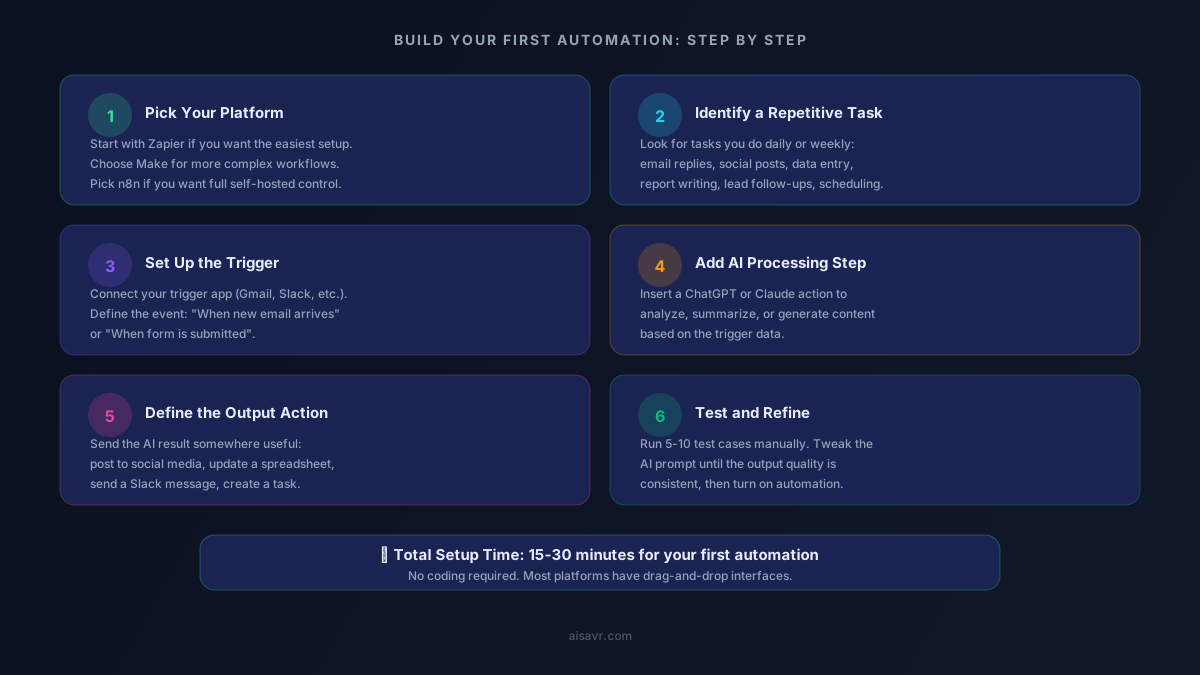
Let's build a real automation together. We'll create a "new lead email auto-responder" using Zapier.
Step 1: Sign Up for Zapier
Go to zapier.com and create a free account. The free plan gives you 100 tasks per month, which is enough to test.
Step 2: Create a New Zap
Click "Create" and start with the Gmail trigger. Select "New Email" as the trigger event. Connect your Gmail account.
Step 3: Add a Filter
Add a filter step: "Only continue if the subject contains 'inquiry' OR 'pricing' OR 'demo'." This ensures the automation only runs for potential leads.
Step 4: Add the AI Step
Click the "+" button and search for "ChatGPT." Select "Conversation" as the action. In the prompt, write:
"You are a helpful sales assistant. Read this email and draft a friendly, professional response. Acknowledge their interest, answer any basic questions, and suggest scheduling a call. Keep it under 150 words. Email subject: [Subject]. Email body: [Body]."
Map the Gmail subject and body to the prompt variables.
Step 5: Send the Response
Add a Gmail "Send Email" step. Map the recipient to the original sender, set the subject to "Re: [Original Subject]", and use the ChatGPT output as the email body.
Step 6: Test
Send yourself a test email with "pricing inquiry" in the subject. Watch the automation run. Review the AI-generated response. Tweak the prompt until the tone matches your brand.
Total setup time: About 15 minutes.
Calculating Your Automation ROI
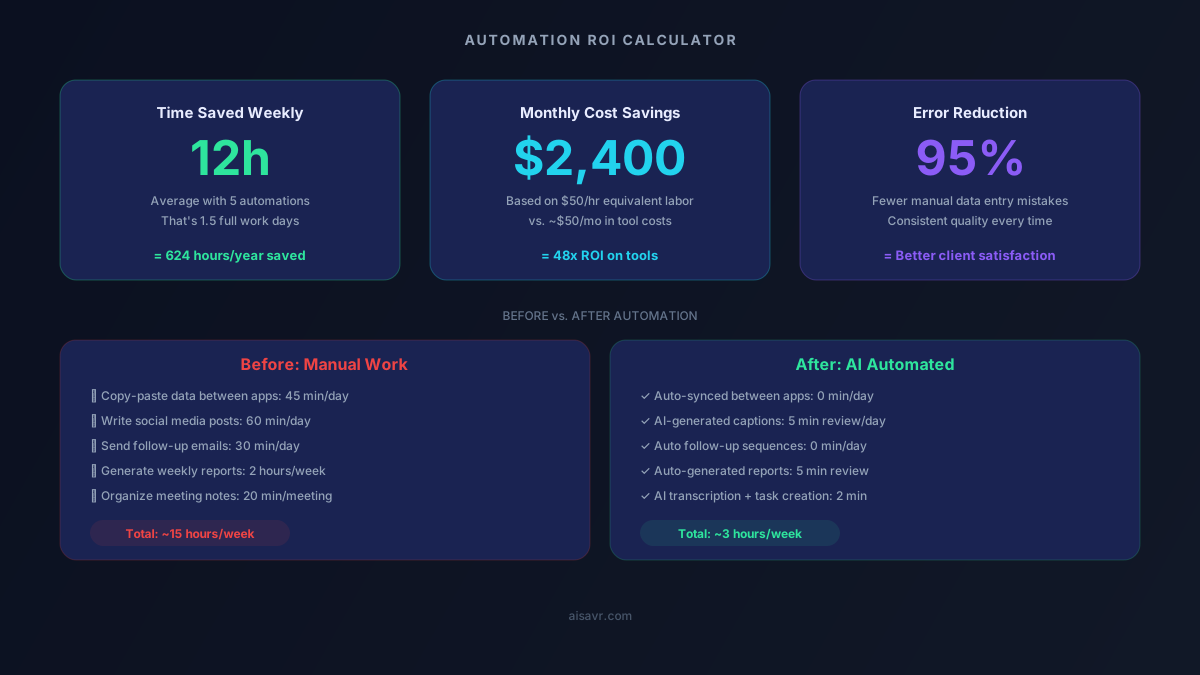
Here's a simple way to calculate whether an automation is worth building:
1. Count the hours. How many hours per week does this task take? Multiply by your hourly rate (or what you'd pay someone to do it).
2. Subtract the tool cost. Monthly cost of the automation platform divided by the number of automations you run.
3. Factor in consistency. Automated tasks run 24/7 without mistakes, sick days, or forgotten steps.
Example:
- Manual social media posting: 5 hours/week = $250/week at $50/hr
- Zapier cost: $20/month = $5/week
- Net savings: $245/week = $12,740/year
Most automations pay for themselves within the first week.
Common AI Automation Workflows by Role
For Marketers
- Blog post to social media pipeline
- Lead scoring and CRM updates from email
- Weekly marketing metrics report
- Content repurposing across platforms
- Automated A/B test result summaries
For Sales Teams
- Lead qualification from incoming emails
- Automated follow-up sequences
- Meeting note action items
- CRM data enrichment with AI research
- Proposal draft generation
For Operations
- Customer review responses
- Invoice processing and categorization
- HR screening of job applications
- Internal FAQ bot for employee questions
- Daily operations dashboards
For Creators
- Video to short-form content pipeline
- Newsletter generation from blog content
- Social media caption generation
- Podcast show notes from transcripts
- Content calendar planning
Prompt Engineering for Automation
The quality of your AI automation depends entirely on the prompt. Here are tips for writing effective automation prompts:
Be specific about the output format. Bad: "Summarize this email." Good: "Read this email and extract: 1) Sender's request (one sentence), 2) Priority (high/medium/low), 3) Suggested response (under 100 words)."
Include examples. Add a sample input and desired output to your prompt so the AI understands the pattern.
Set constraints. Specify word limits, tone (professional, casual, friendly), and what to include or exclude.
Handle edge cases. Tell the AI what to do when data is missing or unclear: "If the email is unclear, classify as medium priority and ask a clarifying question in the response."
Mistakes to Avoid
1. Automating too much at once. Start with one workflow. Get it working perfectly. Then add more.
2. Skipping the testing phase. Run every automation manually at least 10 times before turning it on. Check edge cases.
3. Not monitoring results. Set up a weekly review of your automations. AI output quality can drift over time as your inputs change.
4. Ignoring security. Don't send sensitive data (passwords, financial info, personal health data) through third-party AI APIs without understanding the privacy implications.
5. Over-relying on AI responses. For customer-facing outputs (emails, social posts, reviews), always add a human approval step until you've verified the quality is consistently good.
Getting Started Today
- Sign up for Zapier (free) or Make (free) to explore the interface.
- Pick one task that takes you 30+ minutes per week.
- Build a basic workflow following the step-by-step guide above.
- Test it 10 times with real data before turning it on.
- Monitor for one week and tweak the AI prompt as needed.
- Add a second workflow once the first one runs smoothly.
Within a month, you'll have 3-5 automations saving you 10+ hours per week. That's an entire workday you get back every single week.
The Bottom Line
AI automation in 2026 isn't just for tech companies. Anyone can build workflows that save real time with no coding required. Zapier and Make have made it drag-and-drop simple, and the AI capabilities turn basic automations into intelligent assistants.
Start small. Pick one repetitive task. Build a workflow. Test it. Then scale up. You'll wonder why you didn't start sooner.